Work Text:
Last updated:
19 March 2026 - New site skin page: parent skin dropdown was getting cut off. That is now fixed.
16 March 2026 - mobile add-on skin added
CREATING A NEW SITE SKIN
In order to create a site skin, you need to have an AO3 account and you need to be logged in.
How to Install Your Custom AO3 Site Skin
Follow these steps to customize your Archive of Our Own interface:
- Copy the Code
Head over to the GitHub repository and copy the provided code from style_desktop.css. You can easily do this by clicking the Copy button located at the top of the code block.
- Navigate to Your Skins
· Log into your AO3 account.
· Tap your username at the top of the page and select Dashboard from the menu.
· Click on the Skins link in the Dashboard sidebar. - Create the New Skin
· Click the Create Site Skin button.
· Give a unique name for your skin. (Tip: To avoid "Title already taken" errors, try adding your username or a specific keyword to the title (e.g., MyCoolSkin_Username).
· Paste the CSS code you copied from GitHub into the box labeled CSS.
· In the Media section, select "all". - Save
· Scroll to the bottom of the page and clickSubmit. You will be taken to a preview page showing your new skin details.
· If you're reading on desktop: Click the Use button. Your new skin is now active and will be visible on any device whenever you are logged in.
· If you read also on mobile: Save but do not click Use. Continue with the next step.
CREATING THE MOBILE SKIN:
This skin comes with a mobile add-on that makes the skin look better on phones and tablets.
- Create a new site skin
- Copy/paste the code from style_mobile.css
- In the Media section, select: only screen and (max-width: 62em)
- Save and Use.
FONTS
This theme uses Cinzel for (https://fonts.google.com/specimen/Cinzel) the Archive of Our Own title in the header and Inter (https://fonts.google.com/specimen/Inter) for everything else. Both fonts can be both downloaded for installation on your system.
CREDITS
The header image by Brian Goff at Unsplash. https://unsplash.com/photos/cluster-of-star-illustration-f7YQo-eYHdM
Replace the AO3 Icons 2.0 by ZerafinaCSS, (Zerafina)
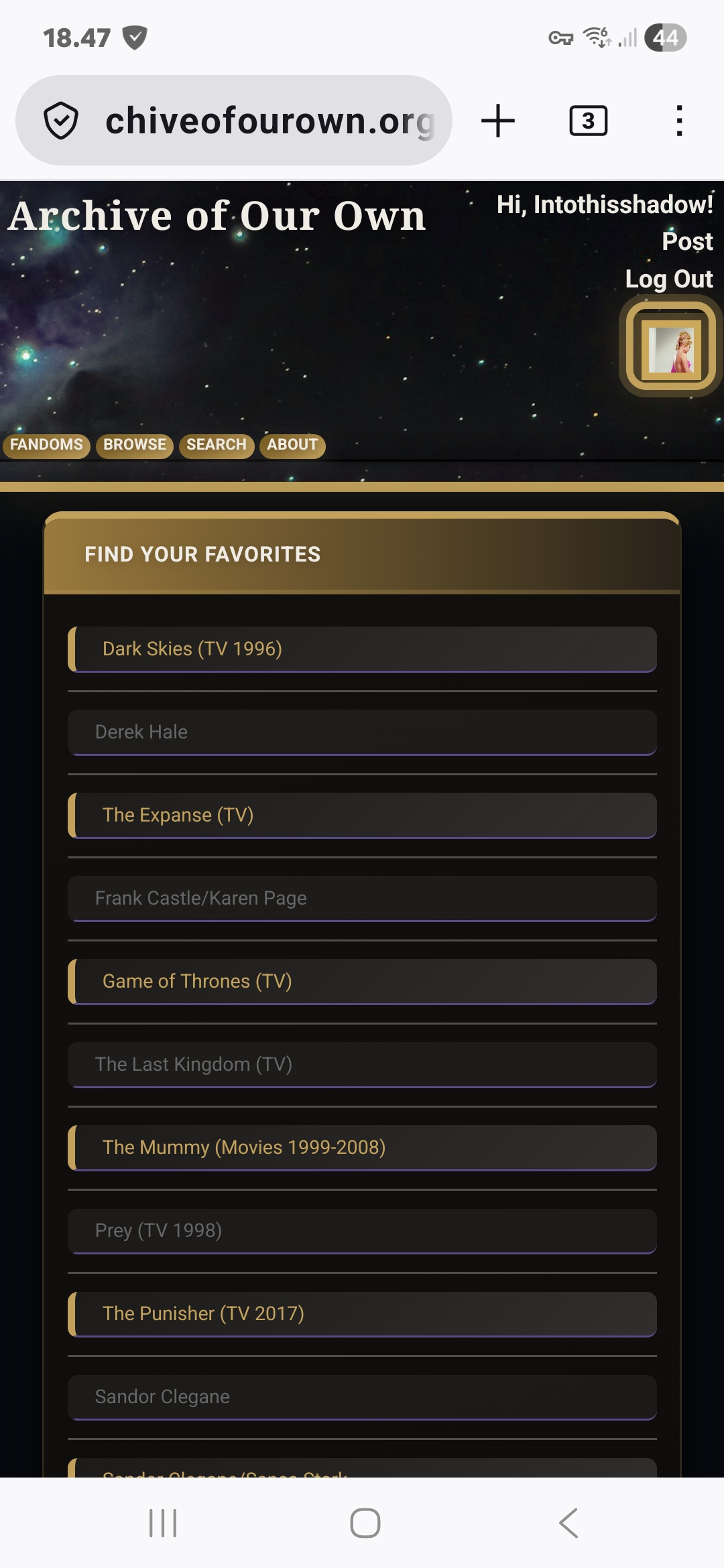
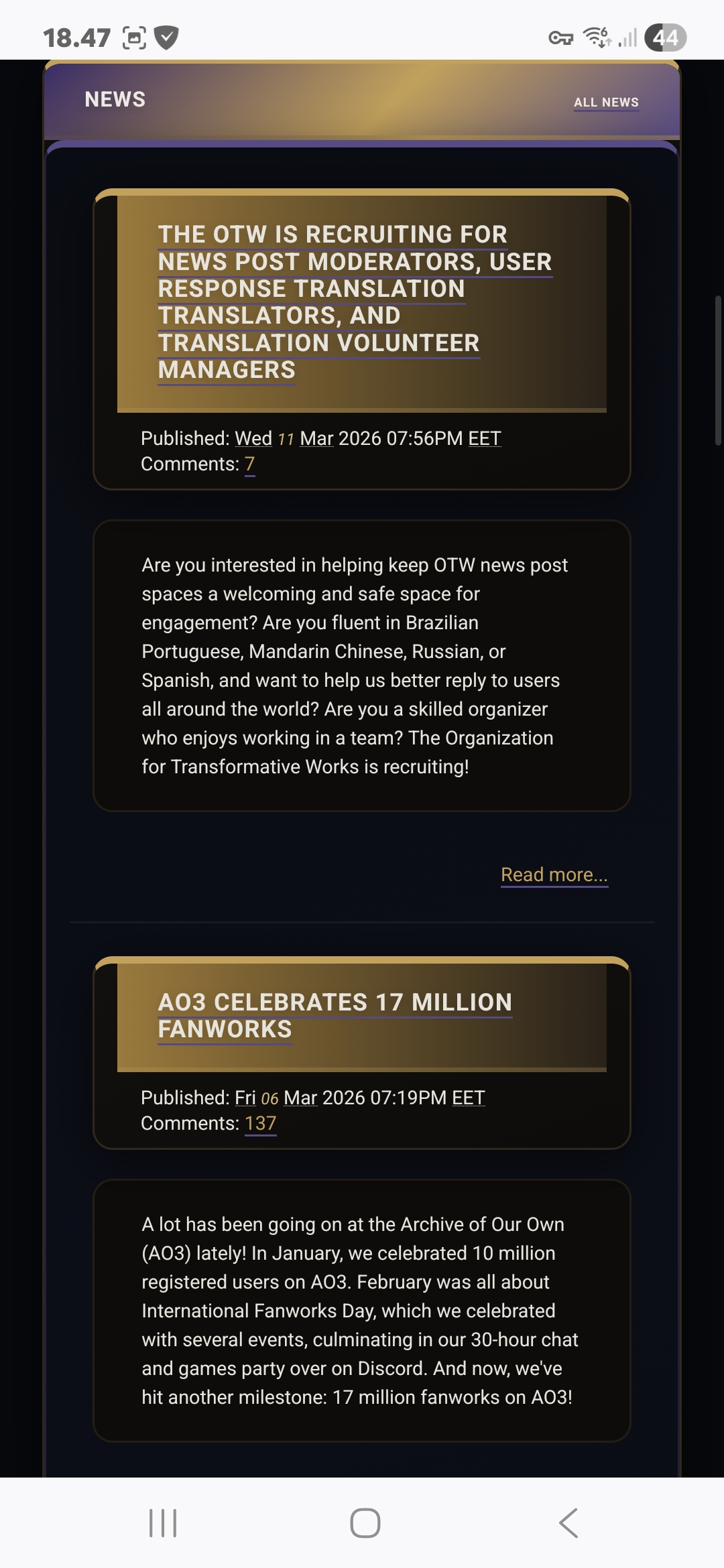
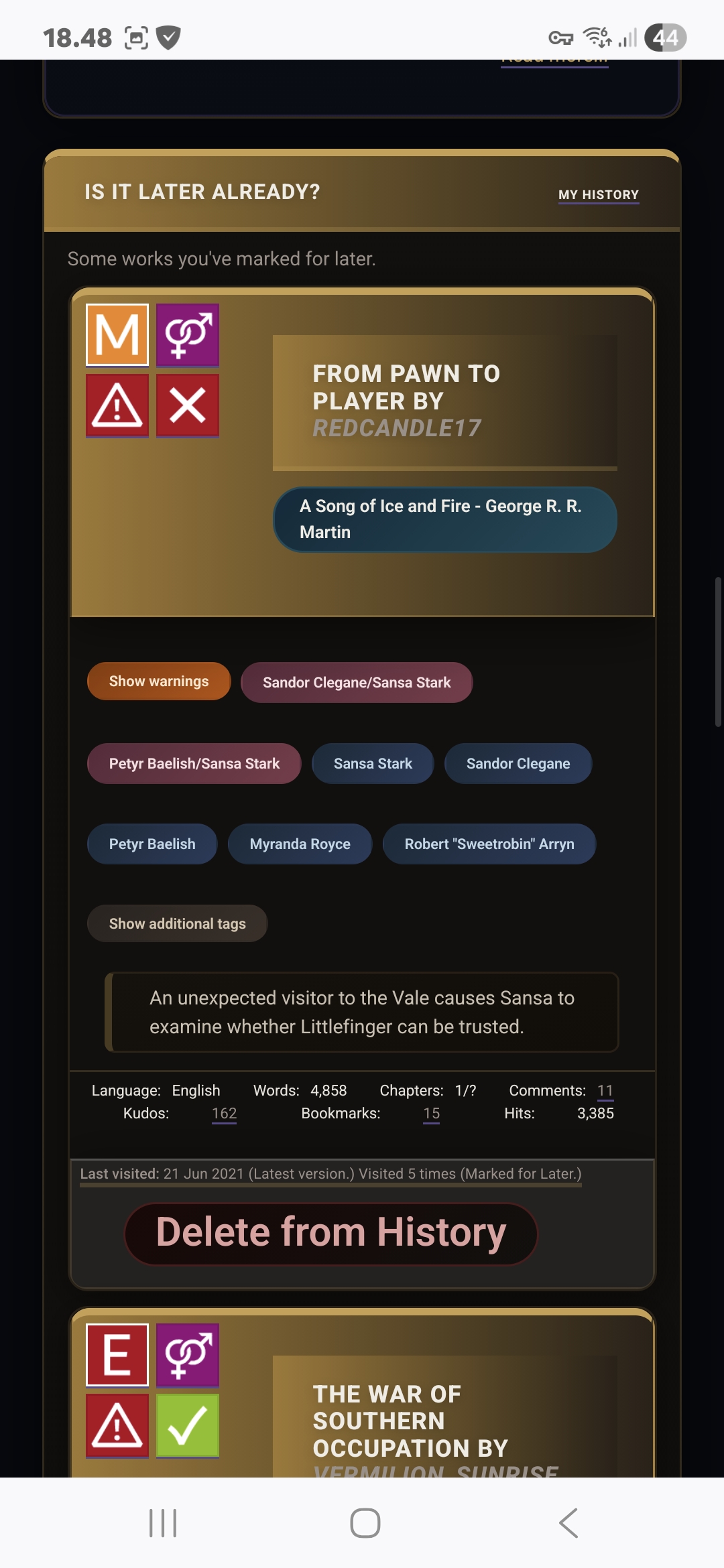
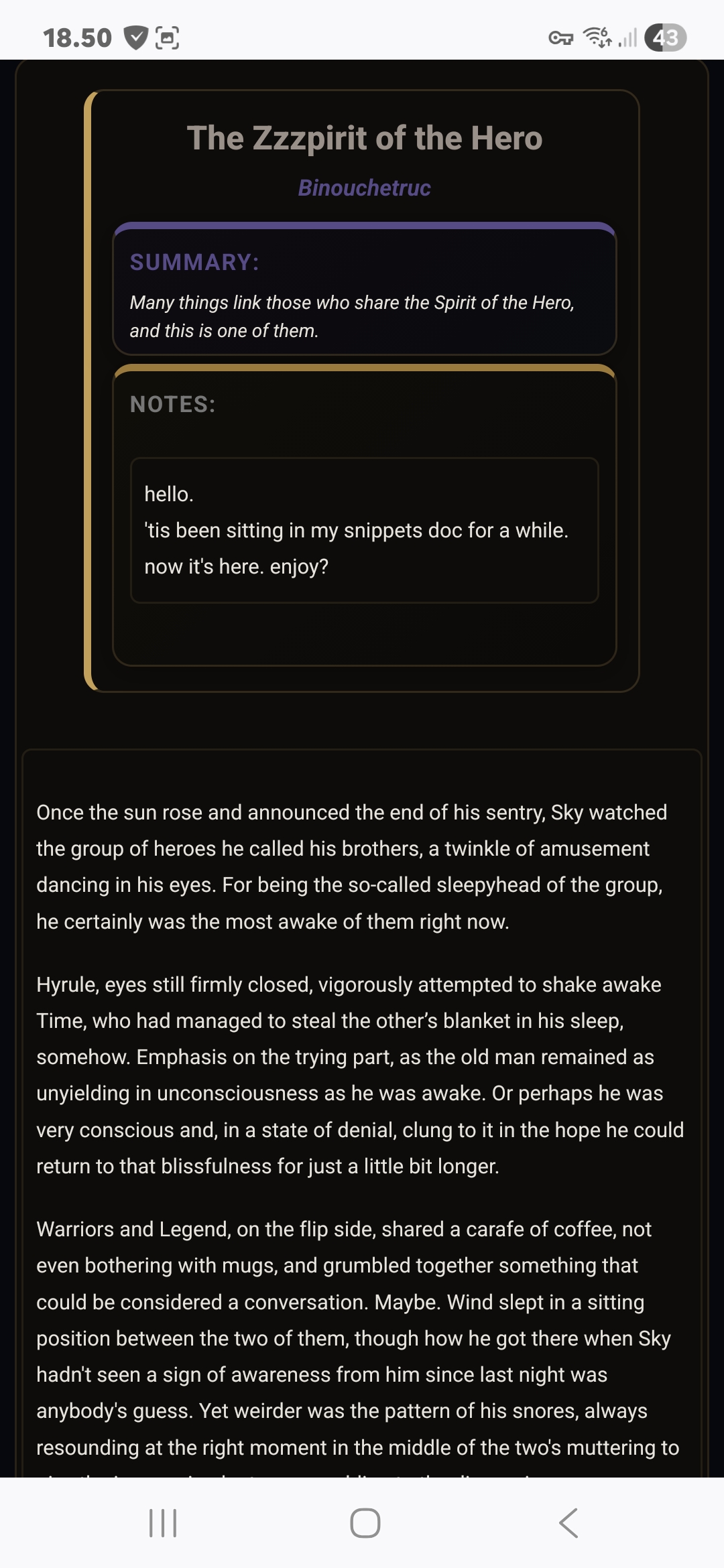
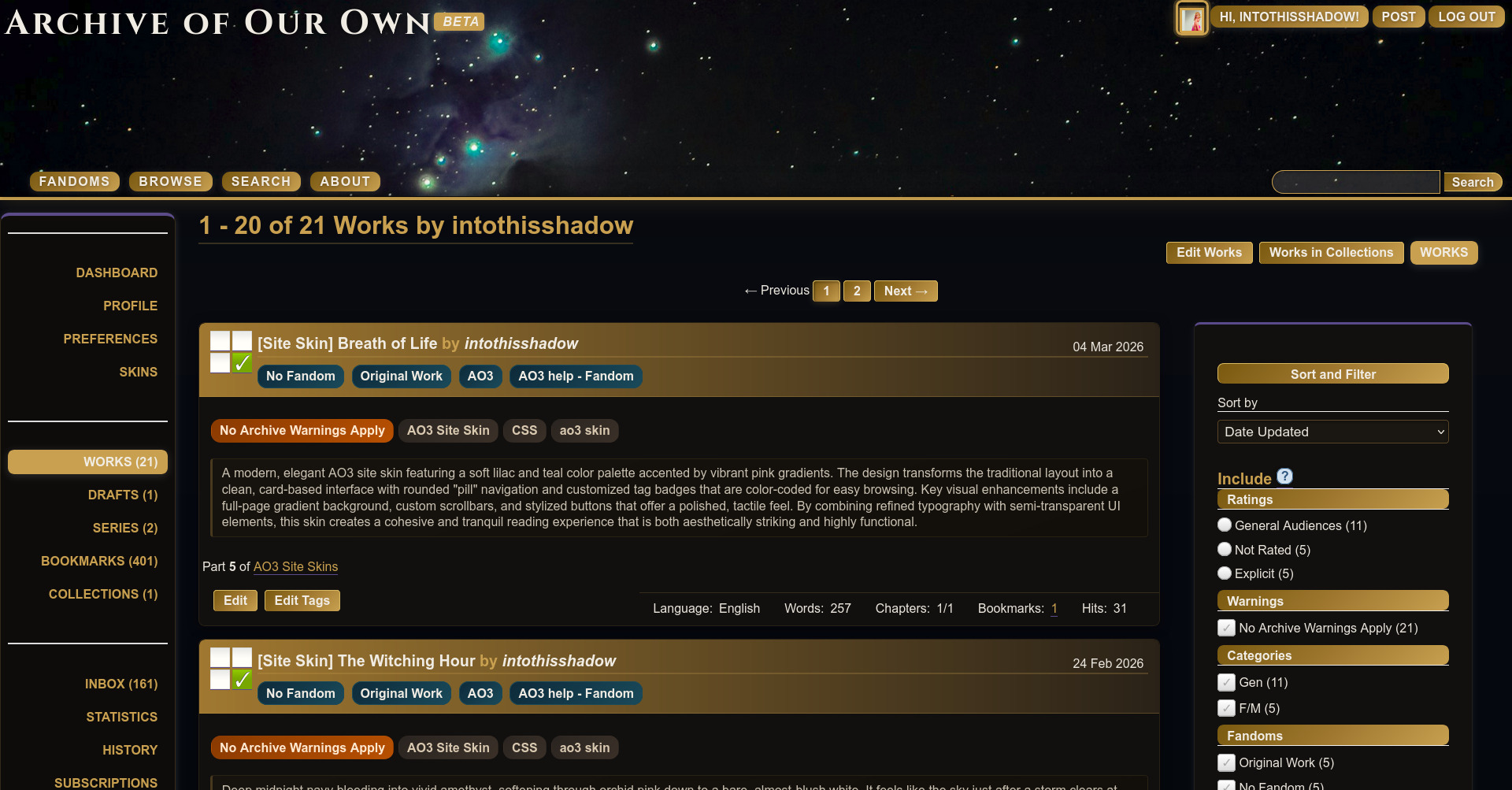
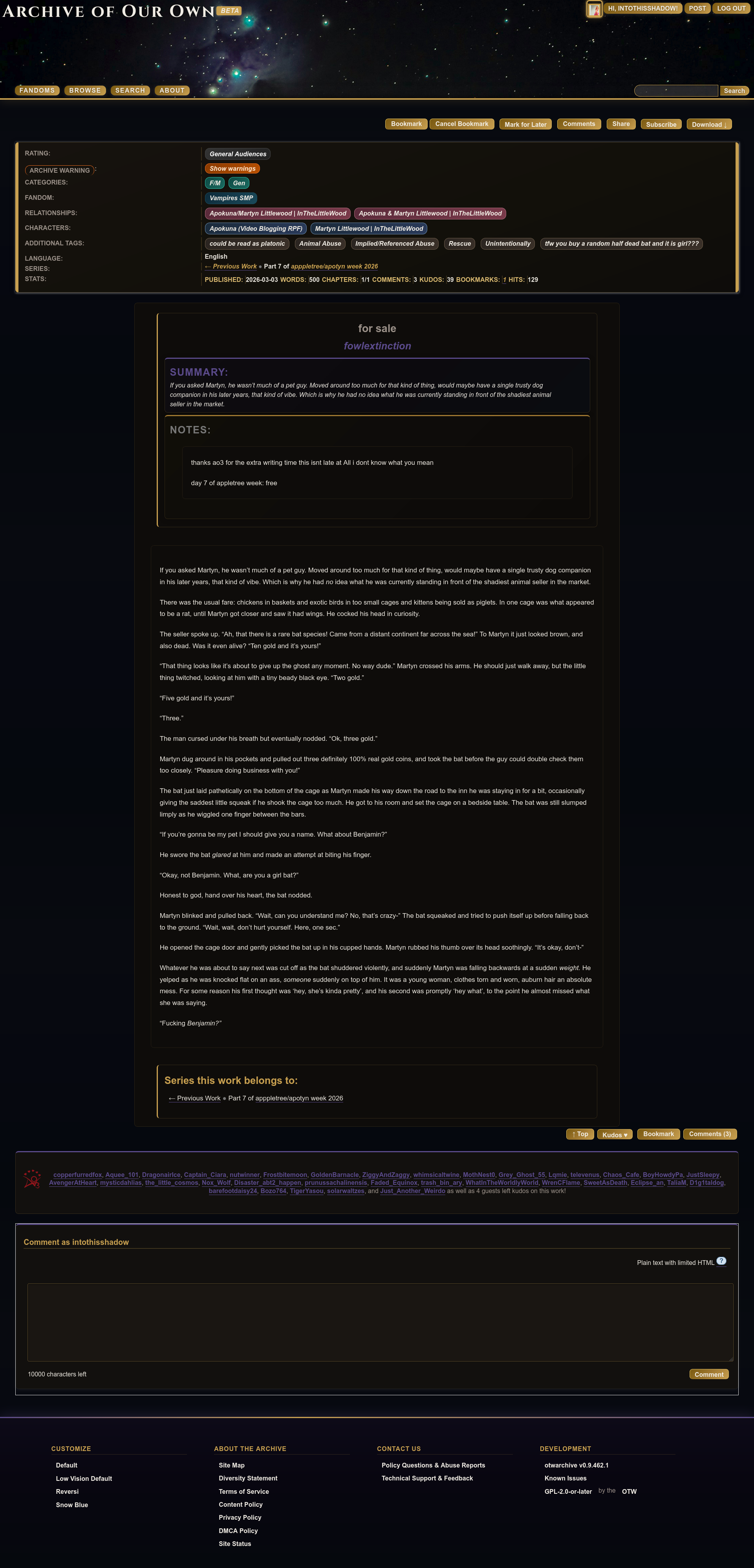
SCREENSHOTS
Click on thumbnail to see it in full size.



SCREENSHOTS - MOBILE